First impressions are everything in e-commerce—but professional packaging design doesn’t have to take weeks.
Whether you’re refining a logo mockup for brand identity or building a complex box mockup for a product launch, a fragmented workflow is the enemy of speed. To move from concept to a conversion-ready packaging mockup that sells, you need more than just a template; you need a production-grade system.
In this guide, we’ll show you how to master the "Unboxing Experience" by seamlessly combining logos, structural boxes, and custom wrapping paper mockups into one cohesive visual identity. Learn how to leverage online mockup generator and AI-powered tools to create realistic, marketplace-compliant assets in a single working day.
Visual Use Case Gallery
Select a category below to see how digital concepts are transformed into realistic packaging visuals across various Gifts and Floral scenarios.
What Is a Packaging Mockup?
A packaging mockup (sometimes searched as mockup packaging) is a visual representation of a package design before production. It lets you preview branding, layout, structure, and styling on boxes, wraps, labels, pouches, and other packaging formats.
Packaging mockups are useful for:
- packaging design review,
- client presentations,
- ecommerce listing visuals,
- launch campaign preparation,
- and internal approvals before printing or sampling.
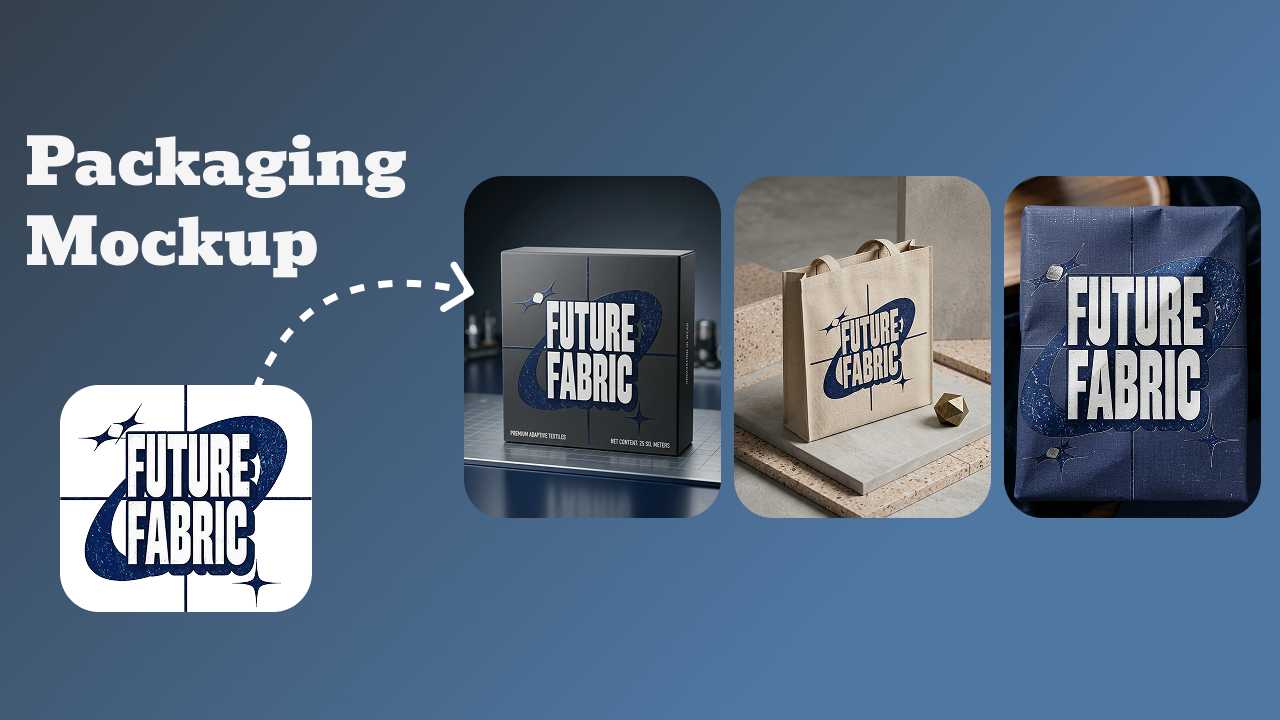
In practice, a professional packaging presentation usually includes more than one mockup:
- Logo mockup
- Box mockup
- Wrapping paper mockup / gift wrap mockup / tissue paper mockup
- Final packaging scene mockup
That’s why this guide treats them as a system, not separate design tasks.
How to Create Packaging Mockup System (Step by Step)
Below is a practical workflow that works for ecommerce teams, designers, and founders who need speed and flexibility.
Step 1: Start With the Asset You Already Have
Don't wait for a perfect template. Start from whichever file you have first:
- a logo file,
- a plain product package photo,
- a box image,
- or a packaging mockup template.
Mockuplabs supports a "mock up any image" workflow, which is useful when you already have a real product photo or prototype and want to turn it into an editable mockup on canvas instead of being limited to fixed templates.
Step 2: Build the Logo Mockup First
Before finalizing box design or wrapping layouts, test your logo treatment:
- flat print
- label placement
- high-contrast vs low-contrast versions
- minimal vs premium-style presentation
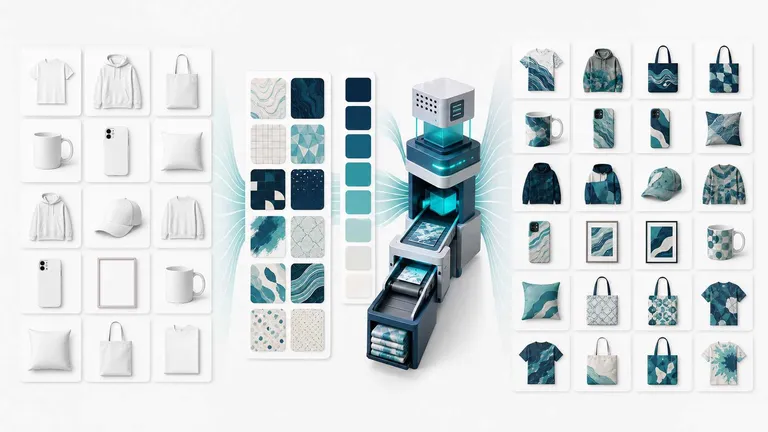
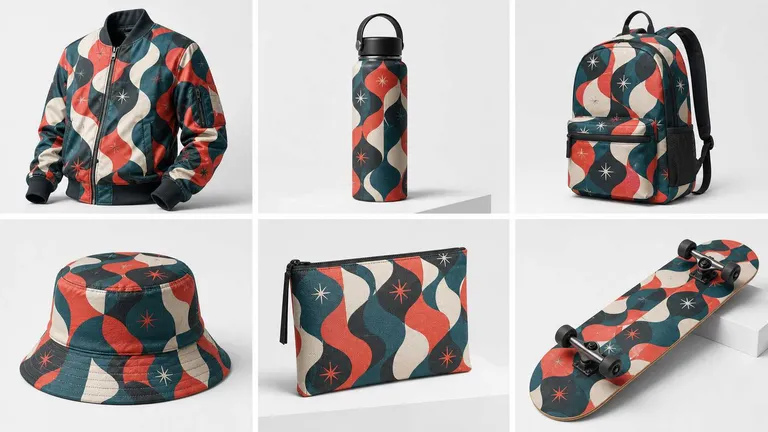
For fast, precise logo mockups, choose a workflow that balances accuracy and speed. Mockuplabs integrates powerful AI models — including Nano Banana Pro, Seedream 4.5, Flux and GPT image — to help you generate high-quality brand assets and seamless patterns. Iterate quickly on creative concepts in one unified, AI-powered workspace.
Step 3: Create the Box Mockup (Primary Packaging Layer)
Now build the box packaging mockup. If you’re working on a square box mockup, focus on:
- front panel clarity
- logo scale
- side panel spacing
- alignment consistency
This is also a good moment to evaluate whether your box design feels too crowded or too plain. A box mockup should communicate your package design clearly even at smaller preview sizes (especially for ecommerce listings and internal review thumbnails).
Step 4: Add Wrapping Paper, Tissue Paper, or Gift Wrap Mockups
Extend the same brand language into an outer layer:
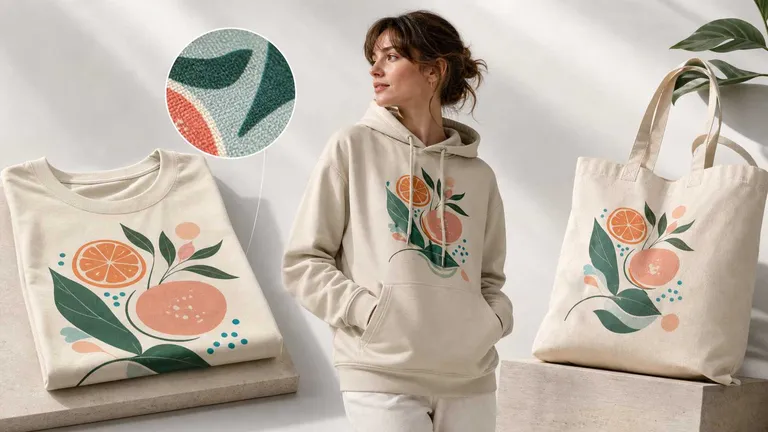
- gift wrap mockup for gifting and seasonal campaigns
- tissue paper mockup for premium unboxing experiences
- food wrapping paper mockup for bakery/café/food packaging branding
- flower wrapping paper mockup for florist packaging concepts
This step is where packaging design starts to feel like a system instead of a single printed surface.
Step 5: Recolor Packaging Variants (Without Rebuilding Everything)
One of the most time-consuming parts of package design and mockup packaging work is creating color variants.
Mockuplabs documents a proprietary real-time color changer for instant recoloring with preview (rather than fully regenerating images), which is particularly useful for packaging variants and product colorways. Use this to test:
- seasonal versions
- premium vs standard packaging palettes
- region-specific variants
- campaign editions
This is much faster than manually rebuilding a new mockup for every version.
Step 6: Export a Complete Packaging Mockup Set
At minimum, export:
- a clean logo mockup preview
- a box mockup
- a wrapping/gift/tissue paper mockup (if relevant)
- one final packaging scene mockup
This gives you assets for:
- design review
- client presentation
- ecommerce visuals
- launch decks
- social previews
How to Make a Packaging & Logo Mockup That Looks Professional
Here are the principles that matter most:
1) Start from a clear base image or template
Use a clean product photo or a high-quality mockup template. The cleaner the starting image, the easier it is to create a professional result.
2) Confirm logo placement before adding too many details
Many box mockups fail because logo placement is decided too late. Test placement early.
3) Keep hierarchy simple
A good box mockup should prioritize:
- logo / brand name
- product type
- one key visual or pattern system
- supporting text only where necessary
4) Test color versions before finalizing
What looks elegant in black may become unreadable in a pastel palette. Recolor early.
5) Preview in context
A box mockup alone is useful, but a final packaging mockup scene helps you judge whether the box design actually fits the full brand presentation.
Common Mistakes in Packaging Mockup Workflows
Mistake 1: Treating logo, box, and wrapping as separate projects
Fix: Build them as one packaging system with shared brand rules (logo scale, palette, pattern density, visual tone).
Mistake 2: Using only a "free box mockup" and stopping there
Fix: Add at least one wrapping or tissue layer and one final packaging mockup scene. This makes the presentation feel complete.
Mistake 3: Rebuilding every color variant manually
Fix: Use a real-time recolor workflow for faster packaging variant testing.
Mistake 4: Choosing templates before clarifying the brand direction
Fix: Start with logo treatment and package design logic first, then select or customize templates.
Mistake 5: Confusing presentation mockups with listing-ready visuals
Fix: Use packaging mockups for design communication, then export cleaner ecommerce images where clarity and conversion are the priority.
Conclusion
Mastering your brand's visual identity means looking at the big picture. Instead of treating your logo, box, and wrapping paper as isolated tasks, a unified production workflow ensures structural truth and marketplace compliance across your entire catalog. By following these professional principles, Gifts and Floral teams can move from a rough concept to a complete set of high-conversion assets in a single working day.
FAQs
Q1: What is a logo mockup?
A logo mockup is a visual preview of how your logo looks in a real context (such as a box, label, wrapping paper, or packaging scene) before you use it in listings or marketing assets.
It helps you check:
- logo size and placement
- contrast and readability
- brand consistency across packaging formats
For ecommerce teams, a logo mockup is useful because it makes branding decisions faster before creating box mockups or wrapping paper mockups.
Q2: How to create a logo mockup online for free?
Upload your logo to a logo mockup generator, choose a mockup surface (box, label, packaging), adjust size/position, and export the result. Mockuplabs supports templates and any-image mockup workflows.
Q3: How do I create a seamless pattern from an image?
Four simple steps:
- Open the AI Image Generator from the Mockuplabs toolbar.
- Describe your pattern or upload a reference image.
- Generate tileable designs and preview them on 3D surfaces to check seams.
- Download the high-res file or apply it directly to your 3D mockup.