Table of Contents
- What is a Mockup? (Definition & Purpose)
- Mockup vs. Wireframe vs. Prototype: What’s the Difference?
- The Strategic Benefits of Using Mockups
- Common Types of Mockups
- How to Create Professional Mockups in Minutes
- Best Practices for Designing Effective Mockups
- Conclusion
- Frequently Asked Questions (FAQs)
What is a Mockup? (Definition & Purpose)
A mockup is a static, high-fidelity visual representation of a final product, showcasing the exact appearance of a website, app, or physical item before production begins. Its definition includes detailed elements like color schemes, typography, and overall layout, effectively bridging the gap between a rough concept and a functional prototype. The primary purpose of a mockup is efficient visualization and communication, allowing all stakeholders to review the final "look and feel" without needing underlying functionality. This process is crucial because it saves significant time and cost by enabling the early identification of visual errors. Essentially, a mockup serves as a reliable design dress rehearsal that secures stakeholder buy-in and ensures visual clarity among all teams.
Mockup vs. Wireframe vs. Prototype: What’s the Difference?
Confusion often arises between wireframes, mockups, and prototypes, as they represent different stages of the design lifecycle. However, understanding their distinct roles is crucial for an efficient workflow.
1. Wireframe (The Skeleton)
A wireframe is a low-fidelity, basic layout of a design, often resembling a blueprint. It focuses solely on structure and functionality, using placeholders for images and text. Think of it as the architectural floor plan of a house; it shows where the walls go but not what color they are.
- Fidelity: Low (Black & white, sketches).
- Goal: Structure and layout.
- Interactivity: None.
2. Mockup (The Skin)
Conversely, a mockup is a mid-to-high fidelity representation that adds the visual layer. It includes brand colors, fonts, logos, and realistic imagery to generate high-quality mockups that look like the final product. While it looks real, it is static and does not function.
- Fidelity: High (Realistic visuals).
- Goal: Visual design and brand alignment.
- Interactivity: None (Static).
3. Prototype (The Interactive Model)
Finally, a prototype is a simulation of the final interaction. It connects the mockup screens, allowing users to click buttons and navigate menus. Thus, it simulates the user experience (UX) and is used for usability testing.
- Fidelity: High.
- Goal: Functionality and user flow testing.
- Interactivity: High (Clickable).
To sum up, wireframes are for structure, mockups are for looks, and prototypes are for behavior.
The Strategic Benefits of Using Mockups
Why should you invest time in creating mockups? Beyond simple visualization, they offer tangible business advantages that can outperform competitors who skip this step.
1. Early Error Detection
Identifying design flaws during the coding or manufacturing phase is costly. In fact, fixing a problem after development can cost 100 times more than fixing it during the design phase. Mockups allow you to spot clashing colors or unreadable fonts immediately. Therefore, they act as a safety net for your budget.
2. Improved Client Communication
Clients often struggle to visualize a final product from a verbal description or a black-and-white wireframe. By presenting a realistic mockup, you bridge the imagination gap. Specifically, tools that help you create realistic product visuals can turn a skeptical client into an excited partner.
3. compelling Marketing Materials
You do not need to wait for the manufacturing of a physical product to start marketing it. High-quality mockups are frequently used in crowdfunding campaigns, social media ads, and pre-sale landing pages. For example, a "coming soon" page featuring a stunning 3D product render can capture leads months before launch.
Common Types of Mockups
Mockups are versatile and apply to various industries, from software to fashion. Here are the most common categories you will encounter.
Print and Merchandise Mockups
These are critical for e-commerce businesses selling physical goods. They simulate how a design appears on real-world items like T-shirts, mugs, or packaging.
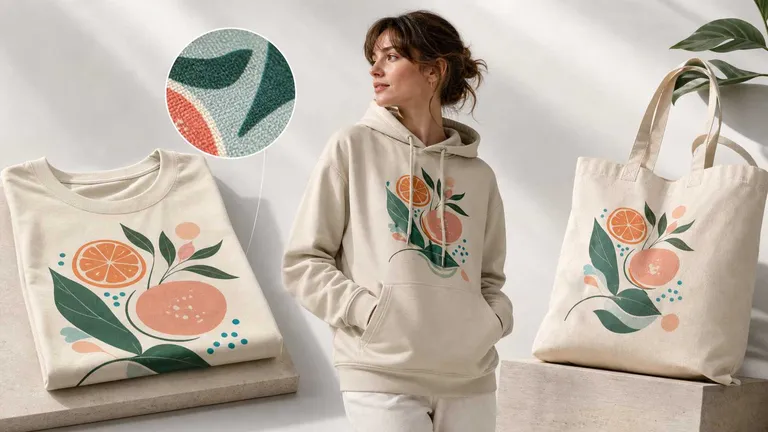
- Apparel: Visualizing logos on fabric is complex due to folds and textures. Using smart color changer features allows designers to test how a graphic looks on different fabric colors instantly.
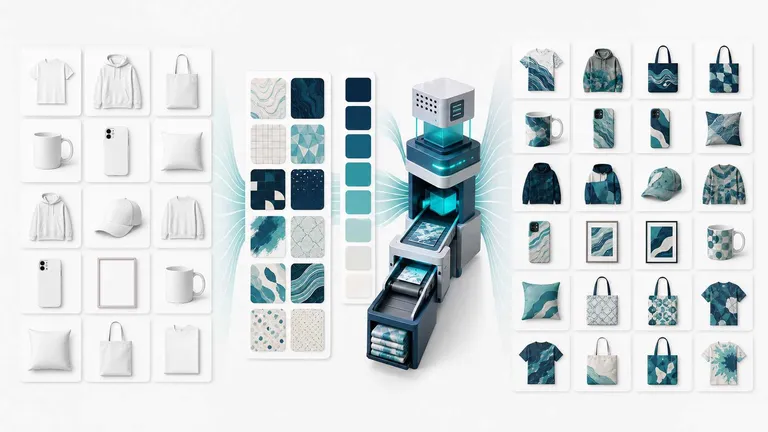
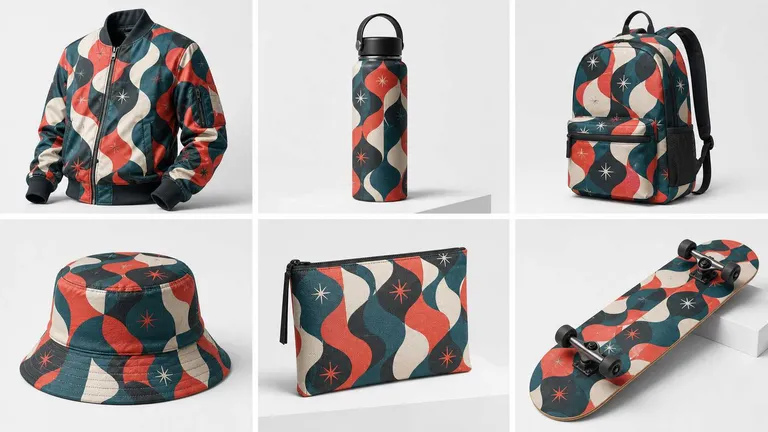
- All-Over Print: For complex patterns that cover the entire garment, standard mockups often fail. specialized tools for all-over print designs ensure the pattern wraps correctly around seams and edges.
Digital User Interface (UI) Mockups
For web and app developers, these mockups show the screen layouts.
- Website Mockups: Display the desktop, tablet, and mobile versions of a webpage.
- App Mockups: Showcase specific screens of a mobile application, often placed inside a phone frame for context.
Branding and Identity Mockups
These create a cohesive look for a brand. They typically include a combination of business cards, letterheads, and envelopes displayed together. This ensures that the logo and color palette remain consistent across different mediums.
Product Packaging Mockups
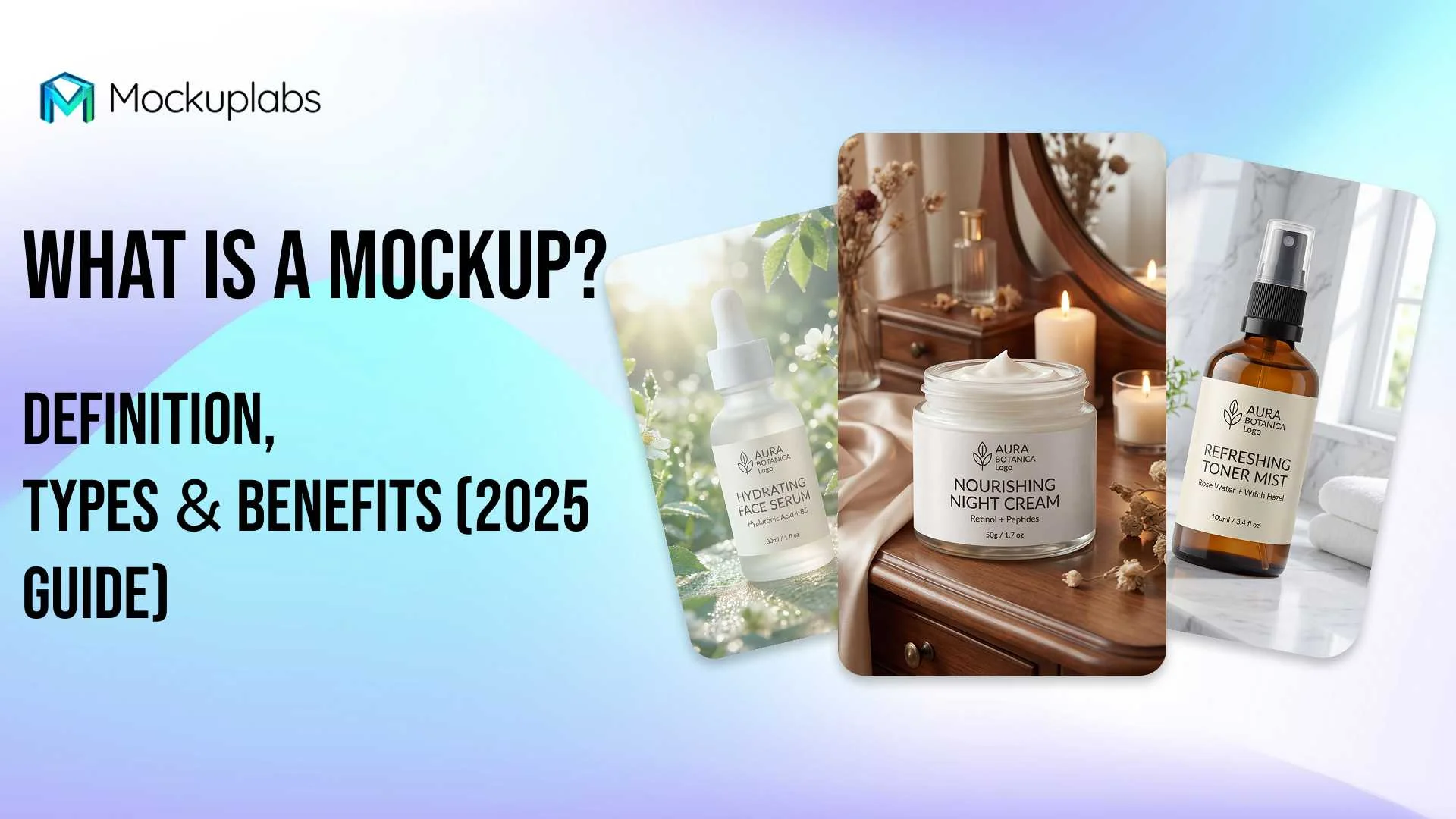
Packaging influences purchase decisions. A mockup helps visualize the box, bottle, or label design in 3D space. Moreover, it allows you to test shelf appeal before printing thousands of units.
How to Create Professional Mockups in Minutes
Step 1: Finalize Your Design
Before you start, make sure your logo, pattern, or UI design is finalized and exported in high resolution (PNG or vector). This ensures your mockup looks sharp and professional in any context.
Step 2: Use a Mockup Generator
If you already have a product photo or AI-generated image, upload it to a mockup generator to turn it into an editable mockup in one click. The tool automatically detects the product shape, curves, and lighting so your design wraps naturally around folds and edges.
Step 3: Refine Inside the Generator
Drag and drop your design onto the converted mockup and adjust size, rotation, and position until it looks right. For more control, select specific areas for placement or apply all‑over‑print so patterns seamlessly cover the entire product.
Step 4: Choose a Mockup Template
If you prefer to start from ready‑made scenes, open the mockup library and pick a template that matches your product type and use case (e.g., white‑background for marketplaces, lifestyle scenes for ads). Many platforms provide thousands of templates across apparel, accessories, tech, packaging, and more.
Step 5: Customize the Template and Export
Upload your design into the chosen template and drop it into the designated smart area to instantly see it on the product. You can typically adjust colors, backgrounds, and sometimes product tints, then export a high‑resolution PNG, JPG, or WEBP for client presentations, online stores, or social media.
Best Practices for Designing Effective Mockups
To ensure your mockups look professional and convincing, follow these golden rules.
- Keep it Realistic: Avoid flat designs that look "pasted on." Ensure your mockup includes natural shadows, fabric folds, or screen reflections.
- Don't Clutter the Scene: The focus should remain on your design. If the background is too busy, it will distract the viewer. Thus, simple or solid-colored backgrounds often work best.
- Use High-Quality Source Files: A pixelated logo will ruin even the best mockup template. Always start with vectors or high-DPI raster images.
- Context Matters: Show the product in its intended environment. For instance, a fitness app looks best displayed on a phone in a gym setting, while a corporate website suits a laptop on a desk.
- Check Color Contrast: Ensure your text is readable against the background material. If you are mocking up a dark T-shirt, verify that your design provides enough contrast to be visible.
Generate Mockups Instantly
Turn any image into an editable, high-resolution mockup in just one click.
Conclusion
Mockups are a strategic, indispensable tool that bridges the gap between design concept and tangible reality, moving far beyond mere visualization. By validating ideas early and streamlining the development process, incorporating mockups into your workflow is a non-negotiable step for saving time, cutting costs, and ensuring a successful final product. Ready to eliminate guesswork? Leverage modern tools to visualize your success and elevate your design process starting today.
Frequently Asked Questions (FAQs)
1. Can I use mockups for commercial purposes?
Yes, most mockups created via paid generators or licensed templates can be used for commercial purposes, such as on your e-commerce store or in advertising. However, always check the specific license agreement of the platform you are using to ensure compliance.
2. Do I need graphic design experience to make a mockup?
Not anymore. While traditional tools like Photoshop require skill, modern AI-powered platforms allow anyone to drag and drop designs into customizable mockup templates. These tools handle the perspective and lighting adjustments automatically.
3. What is the difference between a low-fidelity and high-fidelity mockup?
A low-fidelity mockup might be a rough digital layout with basic colors and placeholder text, bordering on a wireframe. On the other hand, a high-fidelity mockup is pixel-perfect, using the exact images, fonts, and content intended for the final product, looking indistinguishable from the real thing.