Mockuplabs

Show the Product in Context Without Losing the Product

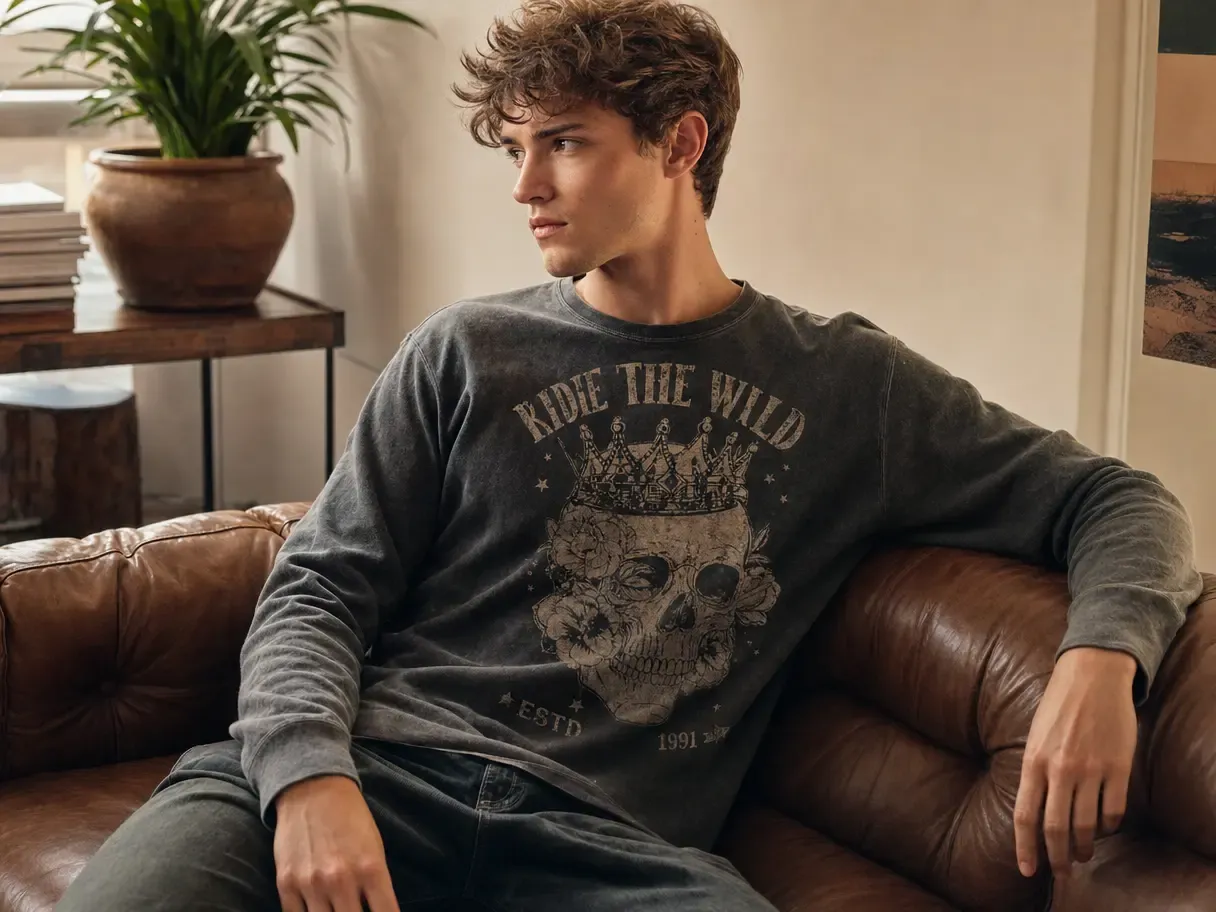
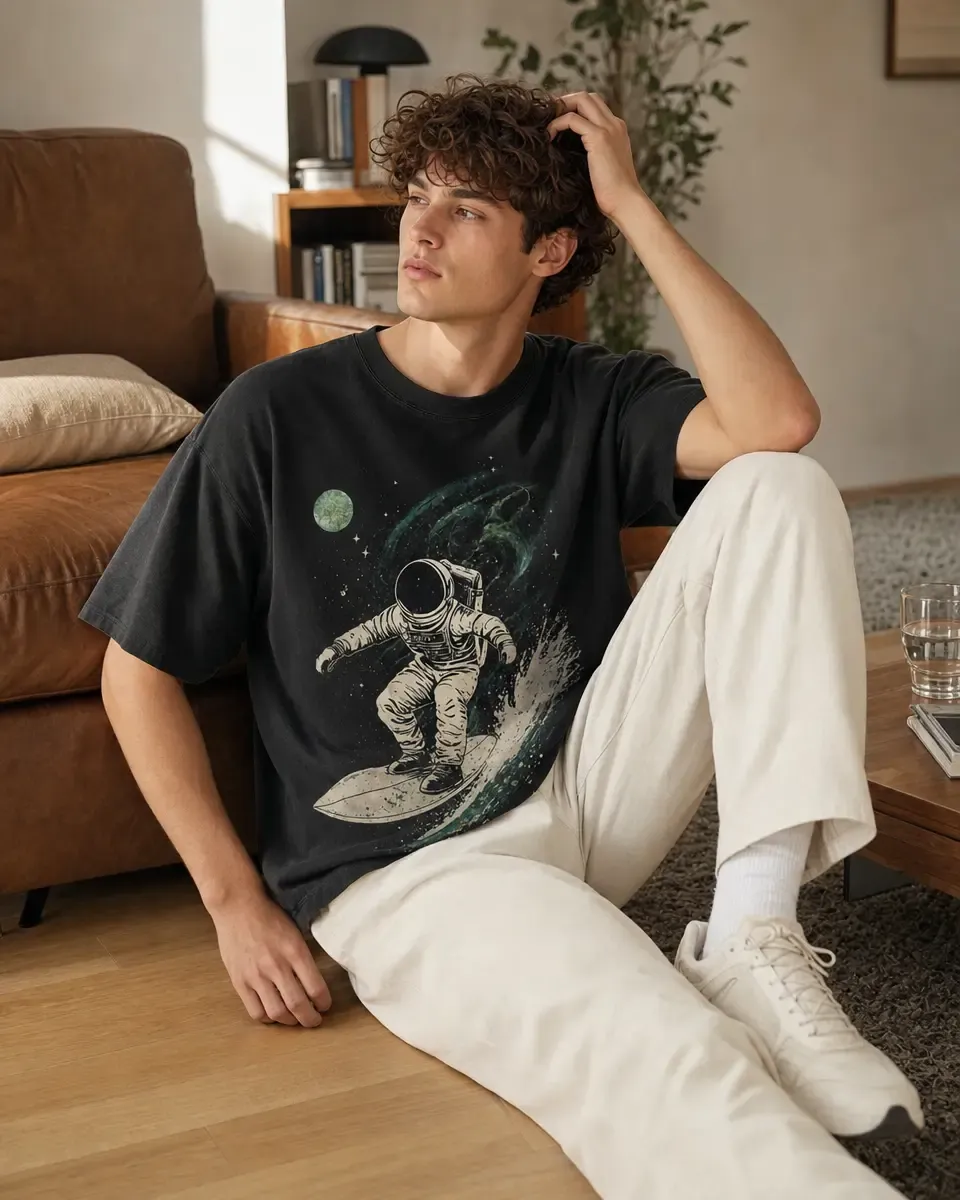
Create lifestyle scenes that help customers understand where, how, and for whom the product fits while keeping the approved SKU recognizable.

  • Start From Your Product
  • Create Real-Use Context
  • Keep the Product Consistent
Create Lifestyle Product Images product-content workflow

Show the Product in Context Without Shooting Every Scene

Extend product imagery you already trust into audience, use-case, seasonal, and campaign environments while keeping the item itself recognizable.

Create More Scenarios From the Same Product Work

Every new audience, season, or campaign can generate another lifestyle-photography request even when the product has not changed.

Mockuplabs lets teams create additional environments around an approved source, making contextual content more practical to produce at catalog scale.
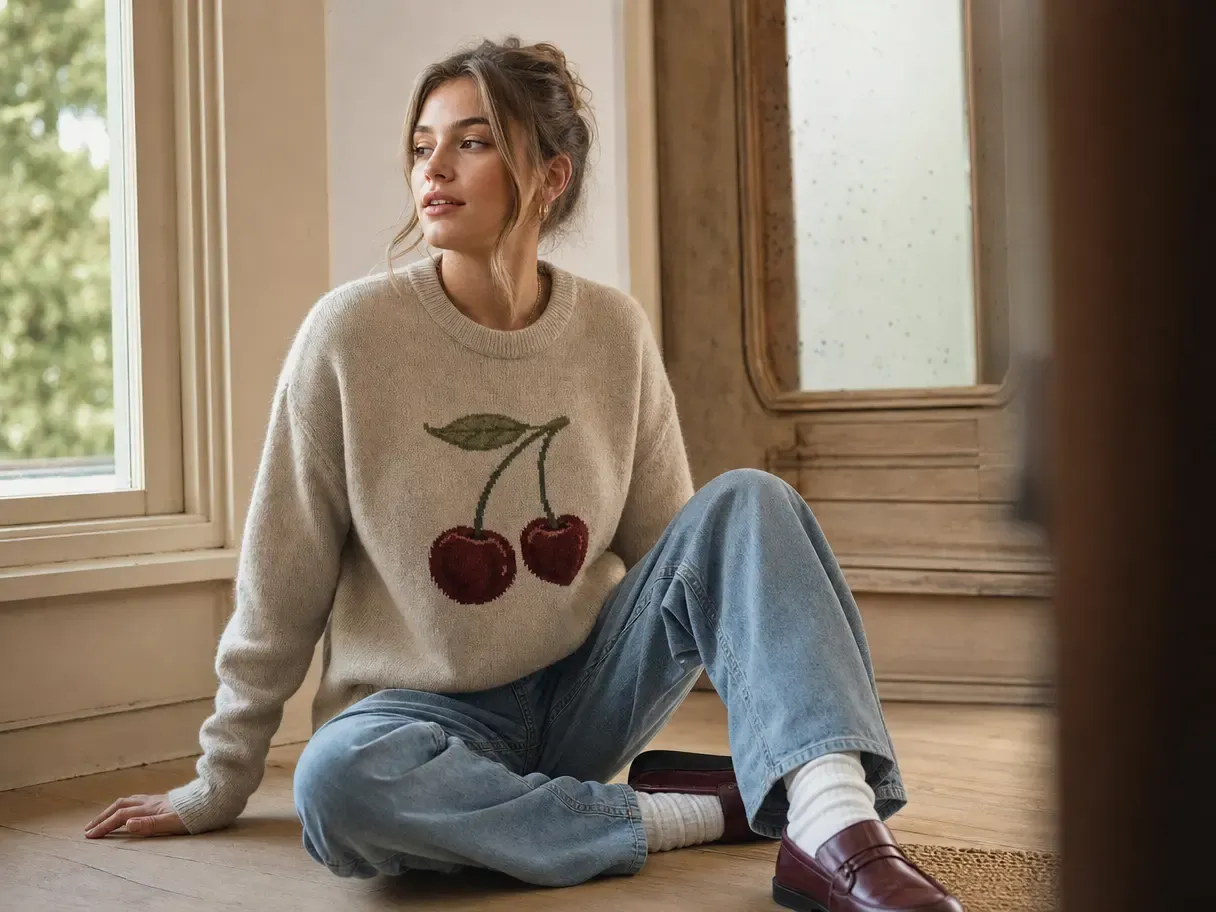
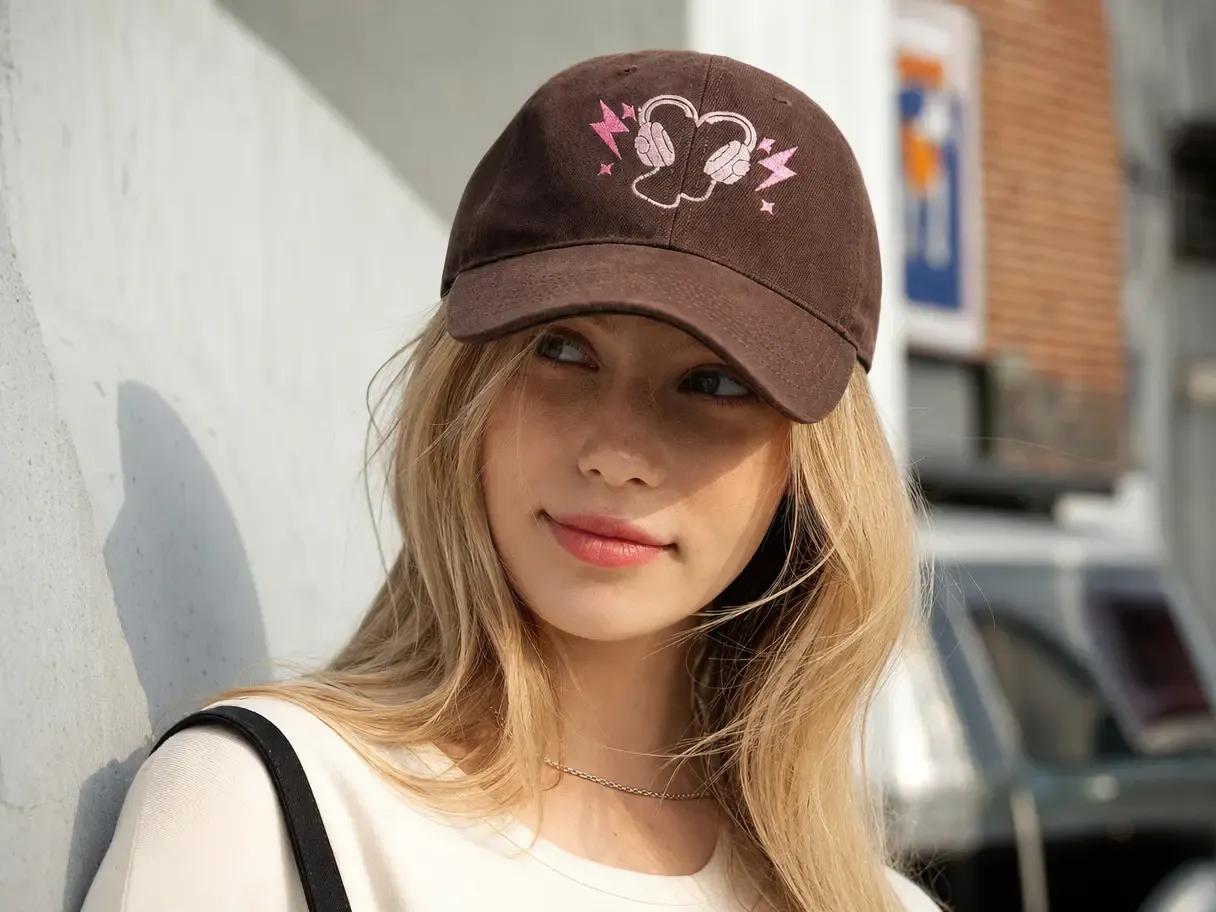
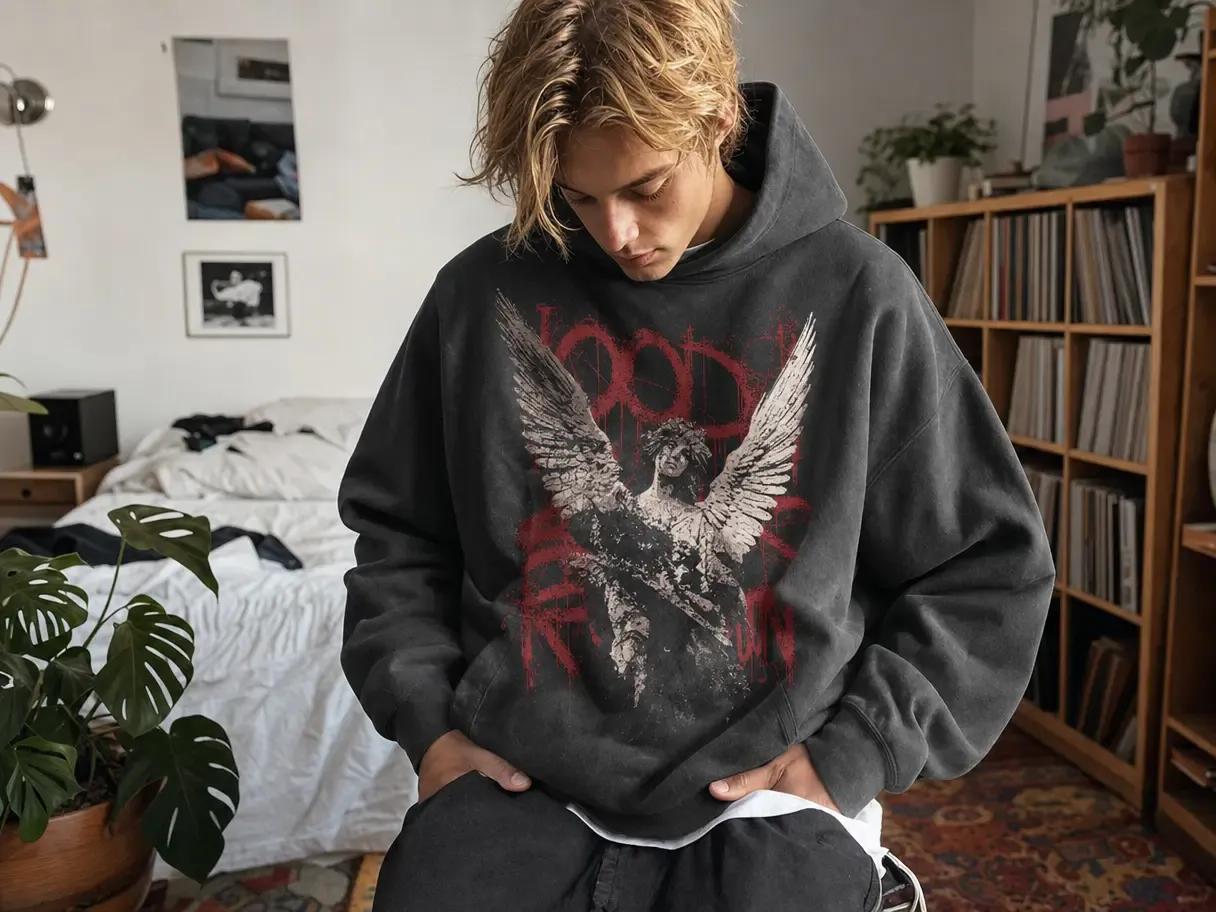
Create More Scenarios From the Same Product Work

Keep the Product Stable as the World Changes

Lifestyle scenes can vary dramatically in location, mood, styling, and composition, but customers still need to recognize the item from the product page.

Starting with the approved product helps preserve that connection across every scene instead of generating a different-looking version each time.

Keep the Product Stable as the World Changes

Turn Context Into a Stronger Selling Asset

Product-first photography explains what the item is; lifestyle imagery can show where it fits, how it is used, and who it is for.

Together, those views give the gallery and campaign more meaning, helping one approved product speak to more purchase situations.

Turn Context Into a Stronger Selling Asset

What You Can Do With Lifestyle Product Images

Build purposeful scenes around the real product, then carry those images into listings, campaigns, social formats, and motion.

Show the Product in a Real Use Moment

Choose a context that clarifies how, where, or when the product belongs in a customer's life.

AI Image Generator builds the environment around the approved source so the scene adds meaning without asking the viewer to accept a different product.

Move From an Approved Product to a Finished Lifestyle Scene

  1. Choose the Product You Need to Preserve

    Upload the product source or approved ecommerce image that should remain recognizable in the new scene.

  2. Prepare the Source if Necessary

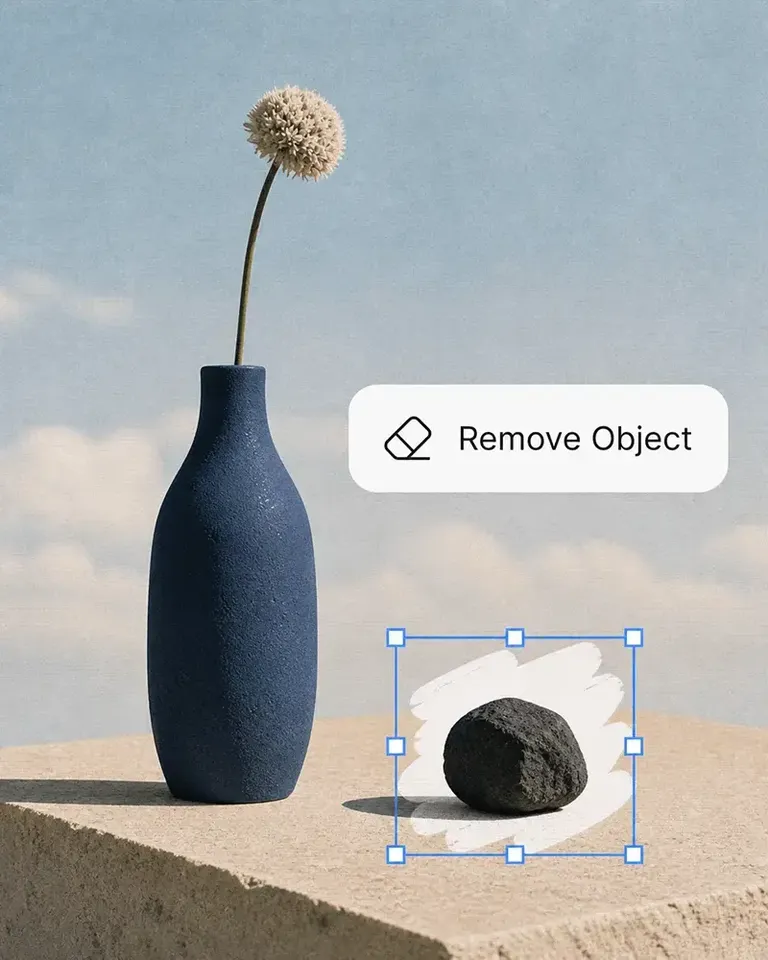
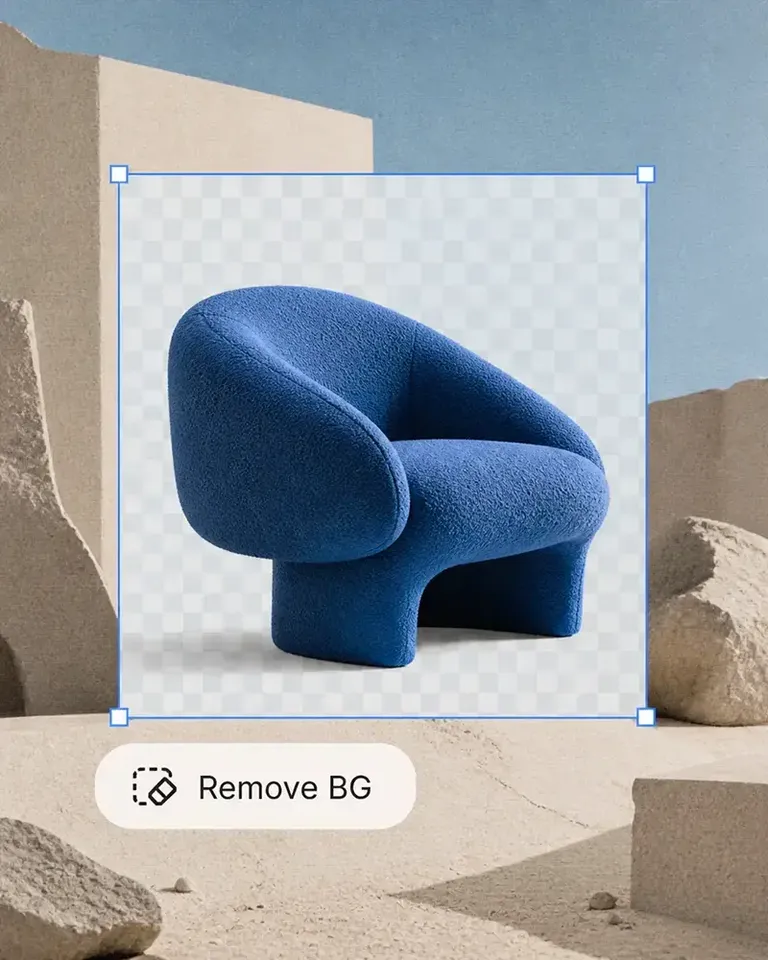
    Use Background Remover or Object Remover when the original environment or unwanted elements limit the next creative direction.

  3. Create the Lifestyle Direction

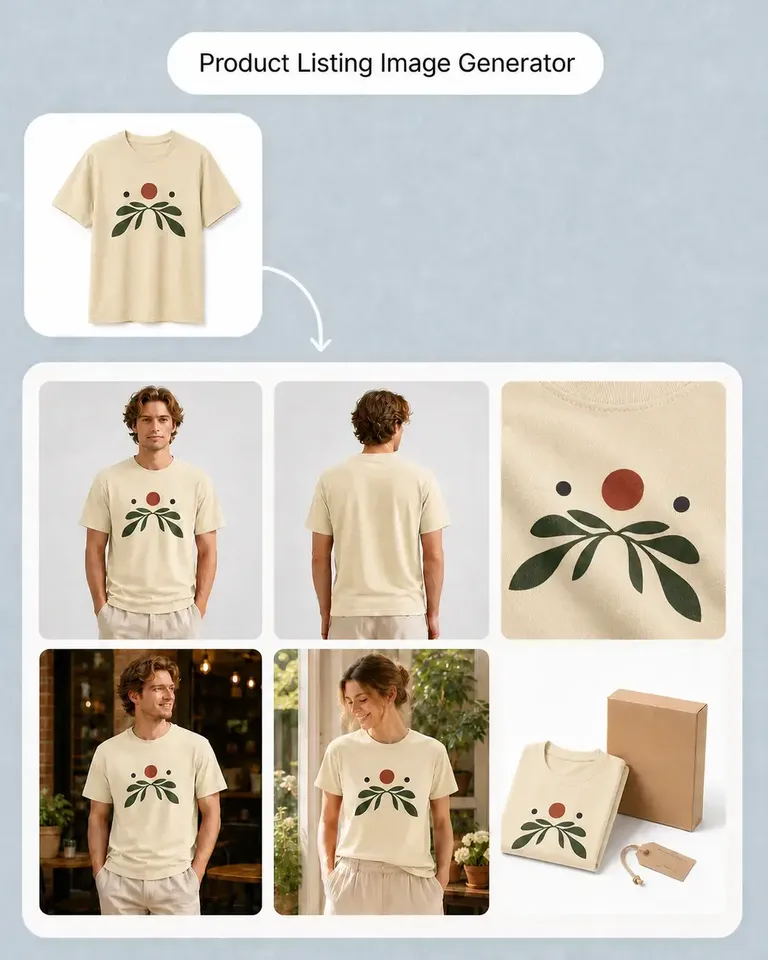
    Use AI Image Generator for dedicated contextual scenes, or Product Listing Image Generator when lifestyle imagery is part of a complete PDP set.

  4. Adapt the Strongest Scene

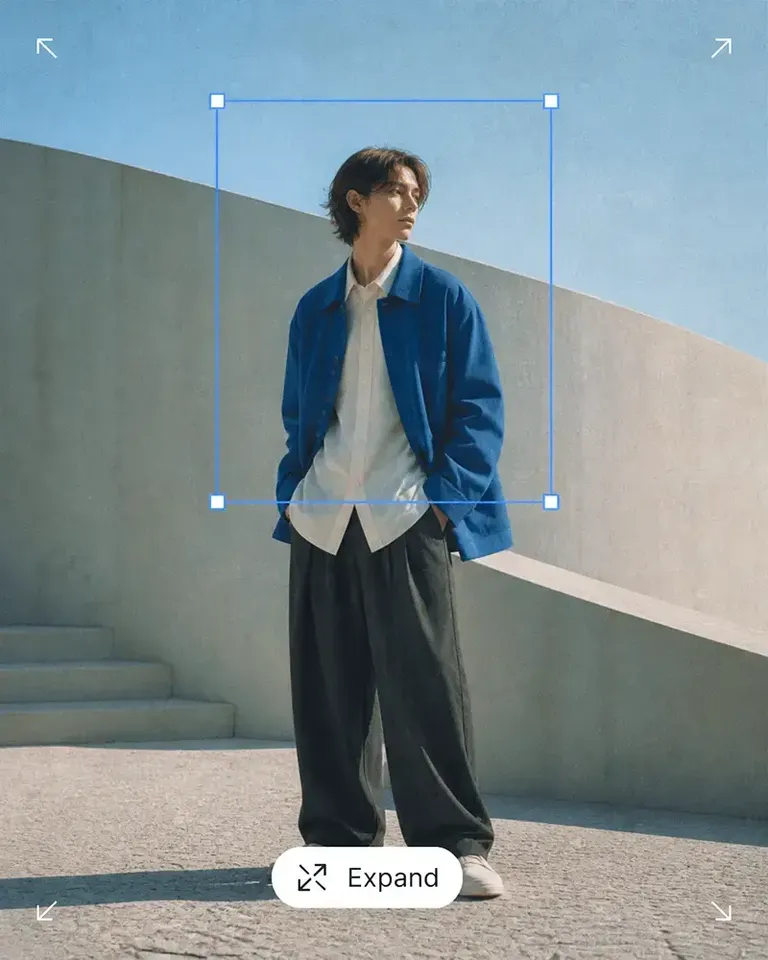
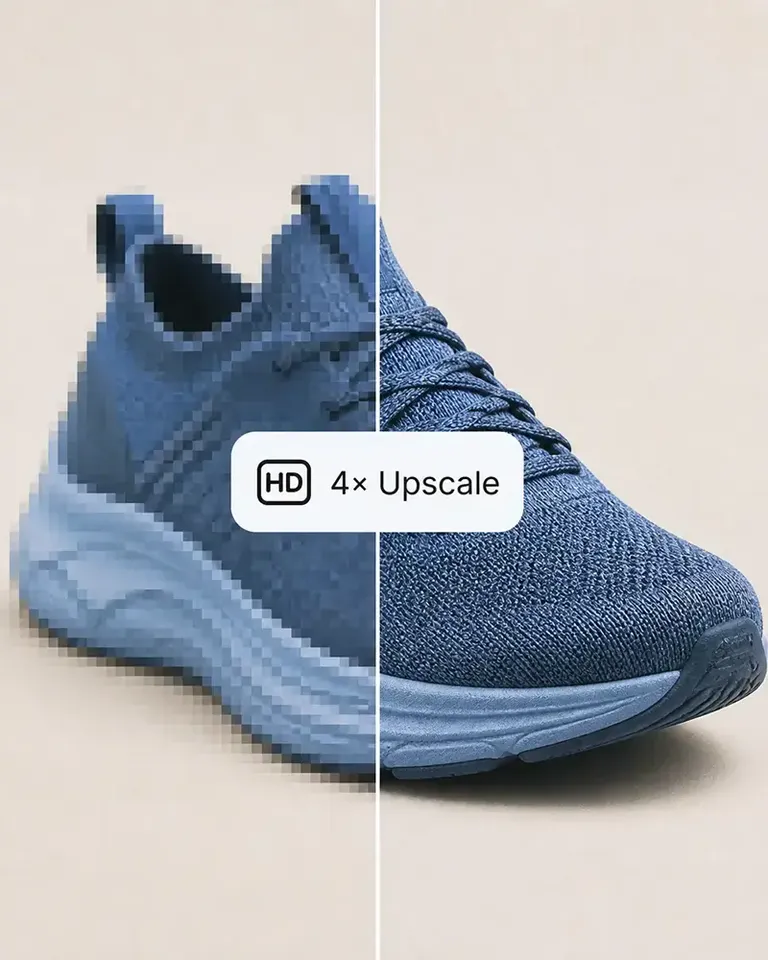
    Use Expand or Image Upscaler when the approved image needs a different composition or more usable resolution.

  5. Publish or Continue Into Motion

    Use the finished scene directly or turn it into short-form video through AI Image to Video.

Connect Product Preparation, Scene Creation, and Refinement

Use only the generation and editing tools required to move from the approved product into the context you need.

Create Lifestyle Product Images FAQs

Need product help? Visit the Help Center.

Lifestyle product images show a product in a relevant environment, use case, styling context, or customer scenario rather than presenting it only as an isolated object.

Show the Product in the Context Customers Need to See

Create lifestyle imagery for product pages, campaigns, and social while keeping the approved product at the center.