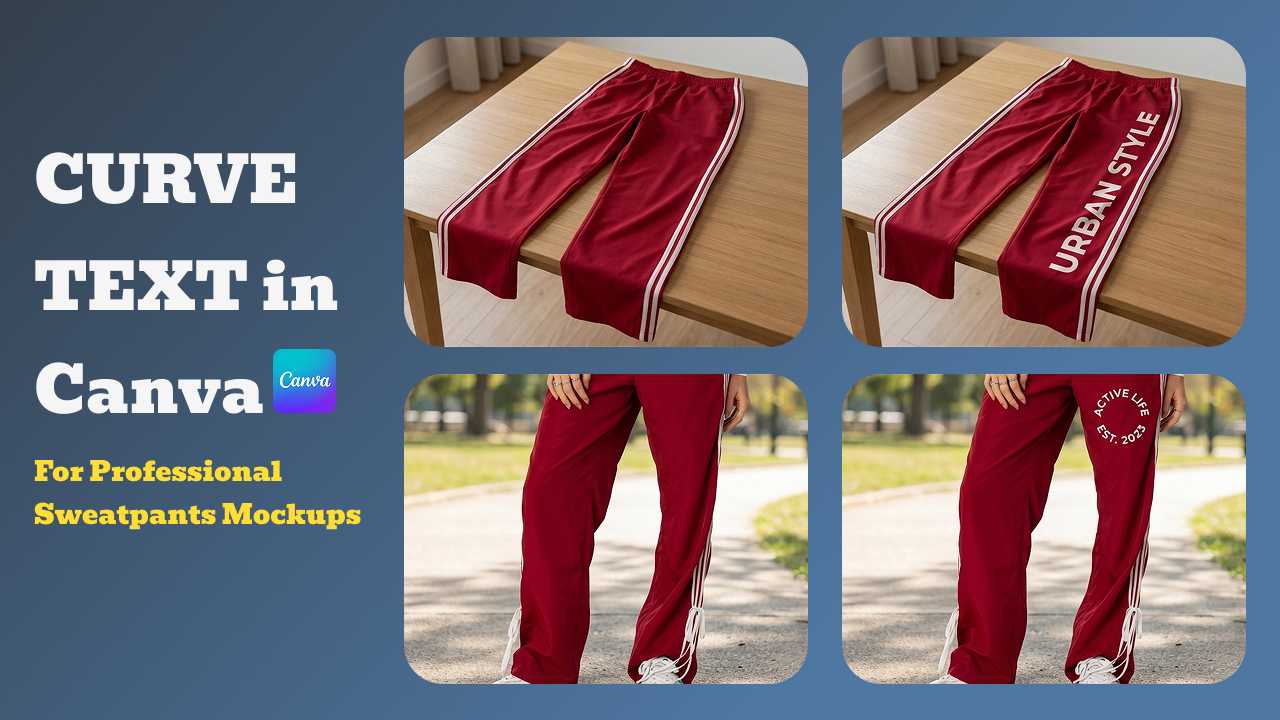
By creating professional curved text in Canva, designers can give their brands a stronger sense of movement and "street cred." However, simply having a good flat design is not enough; therefore, seamlessly applying these designs to a realistic sweatpants mockup is the true key to success. This guide teaches you how to combine Canva’s flexibility with Mockuplabs' AI efficiency to build high-converting e-commerce listings.
Table of Contents
- The Power of Typography in Streetwear Design
- Step-by-Step: How to Curve Text in Canva
- From Canva to Mockuplabs: Bringing Designs to Life
- Creating Realistic Sweatpants Mockups with AI
- Conclusion
- Frequently Asked Questions (FAQs)
The Power of Typography in Streetwear Design
In the modern streetwear market, typography serves as a visual signature. According to market data on custom apparel trends, creative font layouts are a primary driver of consumer engagement. Specifically, curved text creates superior visual tension compared to linear designs, as it follows the natural, 3D contours of the human body. Consequently, mastering this aesthetic is essential for any brand aiming to elevate its market positioning in 2026.
Professional typography does more than just look good; it establishes immediate brand authority and builds buyer trust. For instance, arched lettering is a signature element for varsity-style sweatpants mockups and athletic apparel. Conversely, low-quality design lowers the perceived value of your product. Therefore, understanding the strategic logic of your layout is the first step toward a high-converting listing.
- Visual Flow: Curved text guides the customer’s eye in a fluid, organic motion across the garment.
- Brand Energy: Dynamic typography conveys a message of athleticism, energy, and premium craftsmanship.
- Market Edge: In an e-commerce landscape saturated with flat, linear text, curved arrangements stand out as high-end, custom-made pieces.
Step-by-Step: How to Curve Text in Canva
As one of the most versatile online design tools, Canva makes complex typography accessible to everyone. To create professional curved lettering for your streetwear brand, follow these precise steps:
- Initialize Your Typography: Open the sidebar, select the ‘Text’ tab, and choose ‘Add a Heading’ to create your design anchor on the canvas.
- Draft Your Copy: Double-click the workspace to input your brand’s slogan or product name. For streetwear, keep it bold and impactful.
- Access Advanced Styling: Navigate to the top white configuration bar and click the ‘Effects’ menu to unlock text transformations.
- Implement Circular Geometry: Under the ‘Shape’ options, select ‘Curve’ to instantly wrap your text into an arc.
- Calibrate the Arc: Drag the intensity slider to fine-tune the curvature percentage.
Pro tip: If you want to explore more artistic distortion—like wave effects or perspective warping—you can use the Typecraft app inside Canva. For a visual deep dive into these advanced styles, watch this Easy Warp Text Effect Tutorial.
Best Practices for High-Resolution Exports
To ensure your design remains crisp and professional when applied to a 3D surface, consider the following technical tips:
- Font Selection: It is highly recommended to use bold serif or heavy blocky fonts characteristic of modern streetwear. These styles maintain legibility even when warped over fabric folds.
- Format & Quality: Always export your file in a high-resolution PNG format to preserve edge sharpness.
- Background Handling: Even if you do not have a Canva Pro account to export transparent backgrounds, it is not a problem. Consequently, you can use Mockuplabs' AI-driven features to handle background removal in the next phase of your workflow.
From Canva to Mockuplabs: Creating Realistic Sweatpants Mockups with AI
Once you have exported your design, the next step is to transform that flat logo into a workable asset. Furthermore, by utilizing the built-in Background Removal feature, you can instantly extract your curved text even if the original file has a cluttered background.
Creating a realistic sweatpants mockup requires addressing fabric folds, shadows, and material textures. The process in Mockuplabs is highly intuitive:
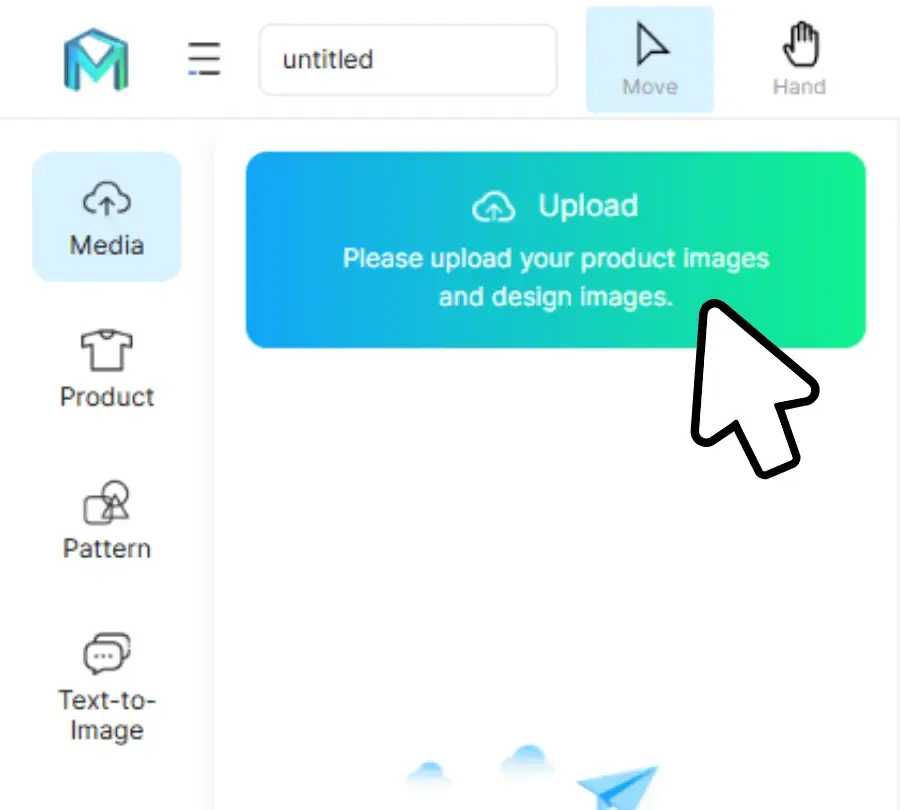
- Upload the Base Image: Use your own product photo or select a socks mockup or joggers template from the mockup library.
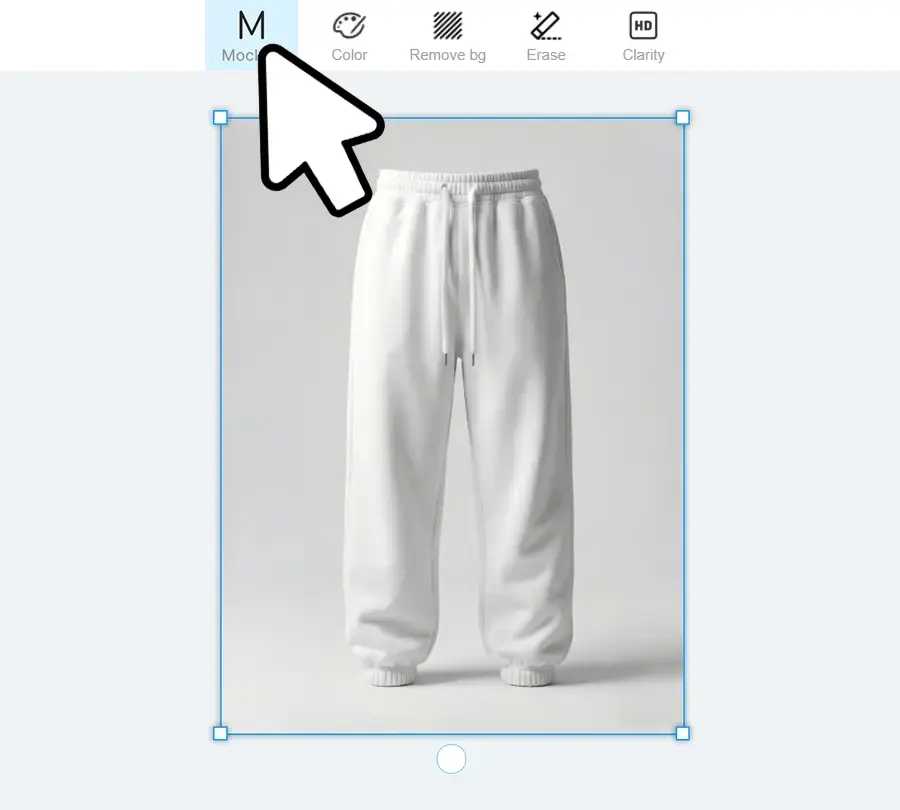
- Convert to Mockup Mode: Select the image and click the "Mockup" button. This converts it into an editable surface where the AI identifies the physical properties of the fabric.
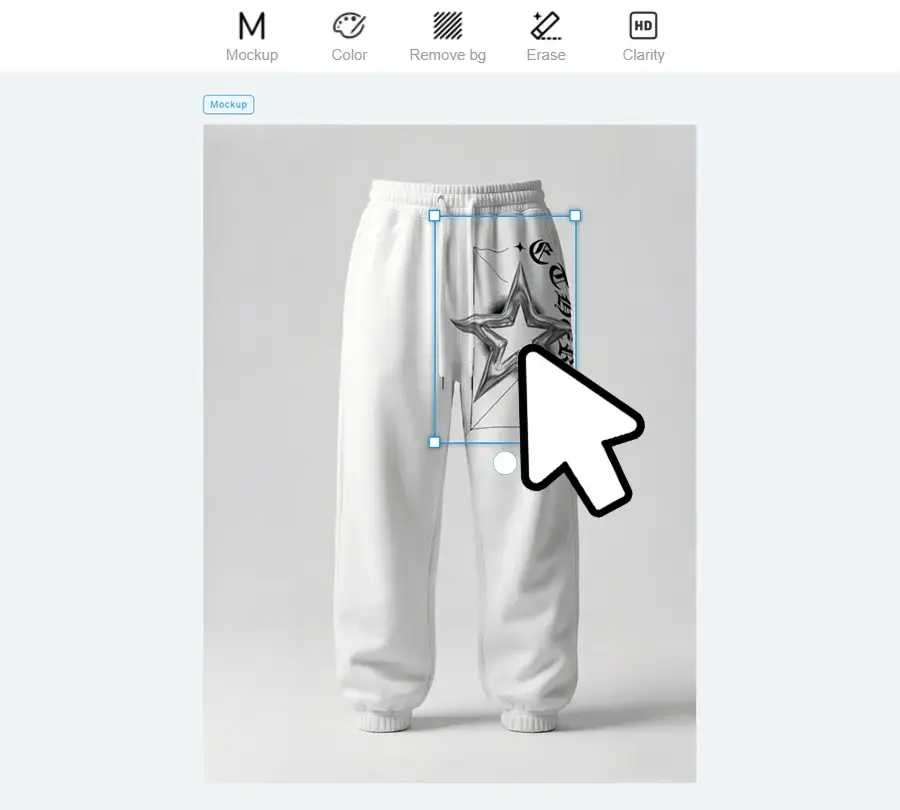
- Position Your Design: Drag your Canva curved text onto the leg area.
- Smart Recolor: If you need to showcase different colors, click "Rasterize" and use the smart color changer to quickly modify the garment's base color.
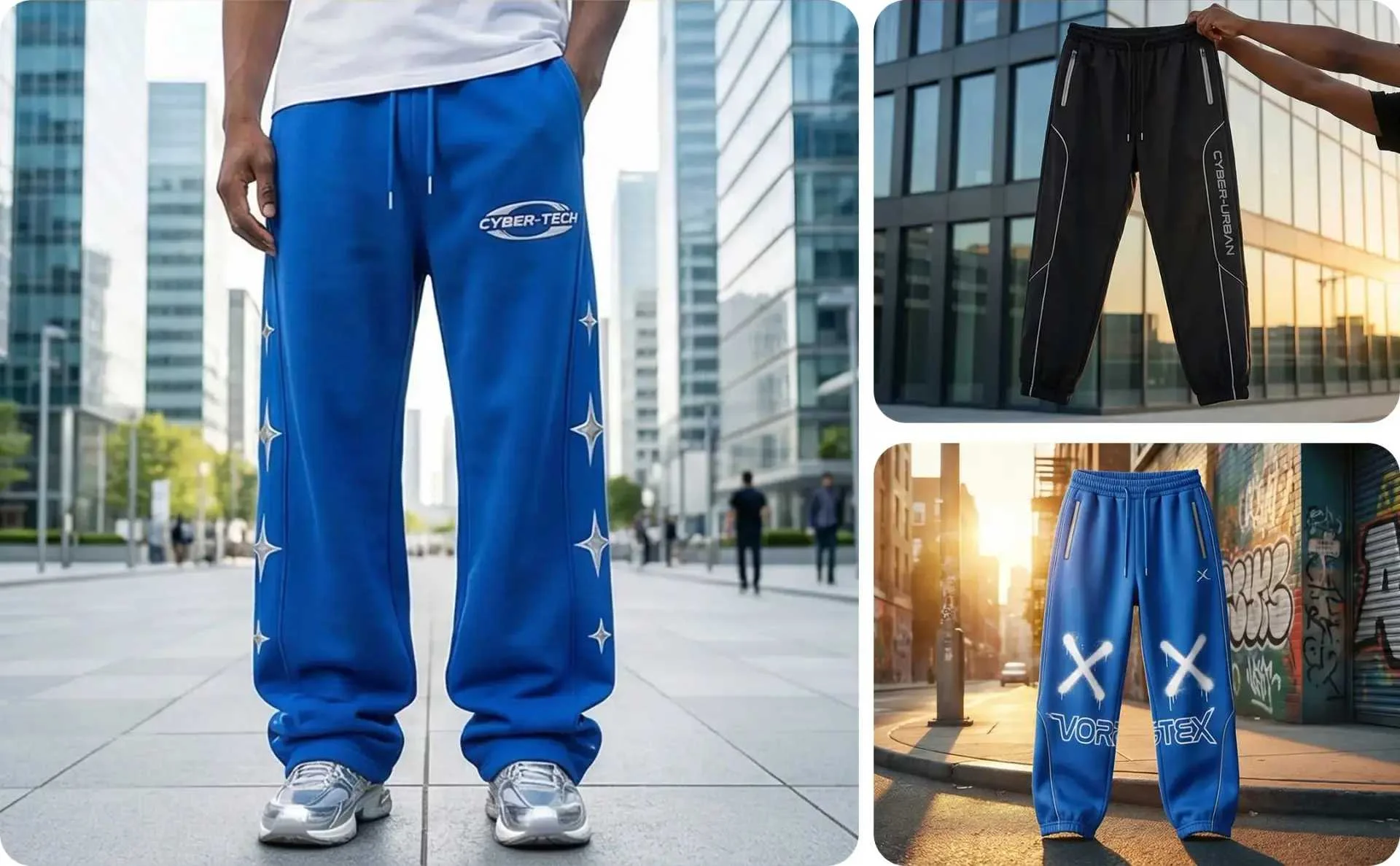
Furthermore, if you wish to perform an All-Over-Print (AOP) design, use the "Area Selection" tool to select specific regions like the entire leg. Therefore, whether it is a small side logo or a full-leg graphic, it can be completed in seconds.
Pro tips: Want to learn more about AOP for specific products? > If you are expanding your collection beyond accessories, explore our deep-dive guides:
Dominate the Streetwear Market with AI
Use background remover and smart color changer to generate a full line of sweatpants instantly and make your e-commerce listings stand out.
Experience the AI Smart Mockup Generator
Conclusion
In conclusion, combining Canva’s creative typography with Mockuplabs' AI processing power is the best practice for brand design in 2026. By learning how to curve text in Canva, you solve the "aesthetic" challenge; by generating AI-powered sweatpants mockups, you solve the "realism" and "efficiency" challenges. Start optimizing your product images today to attract potential customers with more professional and realistic visual effects.
Frequently Asked Questions (FAQs)
Q: Can I create transparent background designs without Canva Pro?
Yes. You can export your design with a solid background and upload it to Mockuplabs. By using the Background Remover tool, you can get a clean curved text logo for your clothing mockup or any product mockup in one click without extra costs.
Q: How do I create an All-Over-Print (AOP) jogger mockup?
Upload your image to Mockuplabs, click "Mockup," and then use the "Area Selection" tool to select the parts of the joggers you want to cover. Furthermore, you can use an AI pattern generator to create seamless patterns that perfectly fill the designated areas.
Q: What is the best way to change sweatpants colors?
You can use a smart color changer.
- Efficiency: After uploading your design to Mockuplabs, use the Smart Color Changer.
- Control: Simply click the garment, and the AI allows you to swap hex codes or select from a palette. The best part is your pattern or logo design remains perfectly positioned and shaded, allowing you to generate an entire New Year Collection in minutes.